

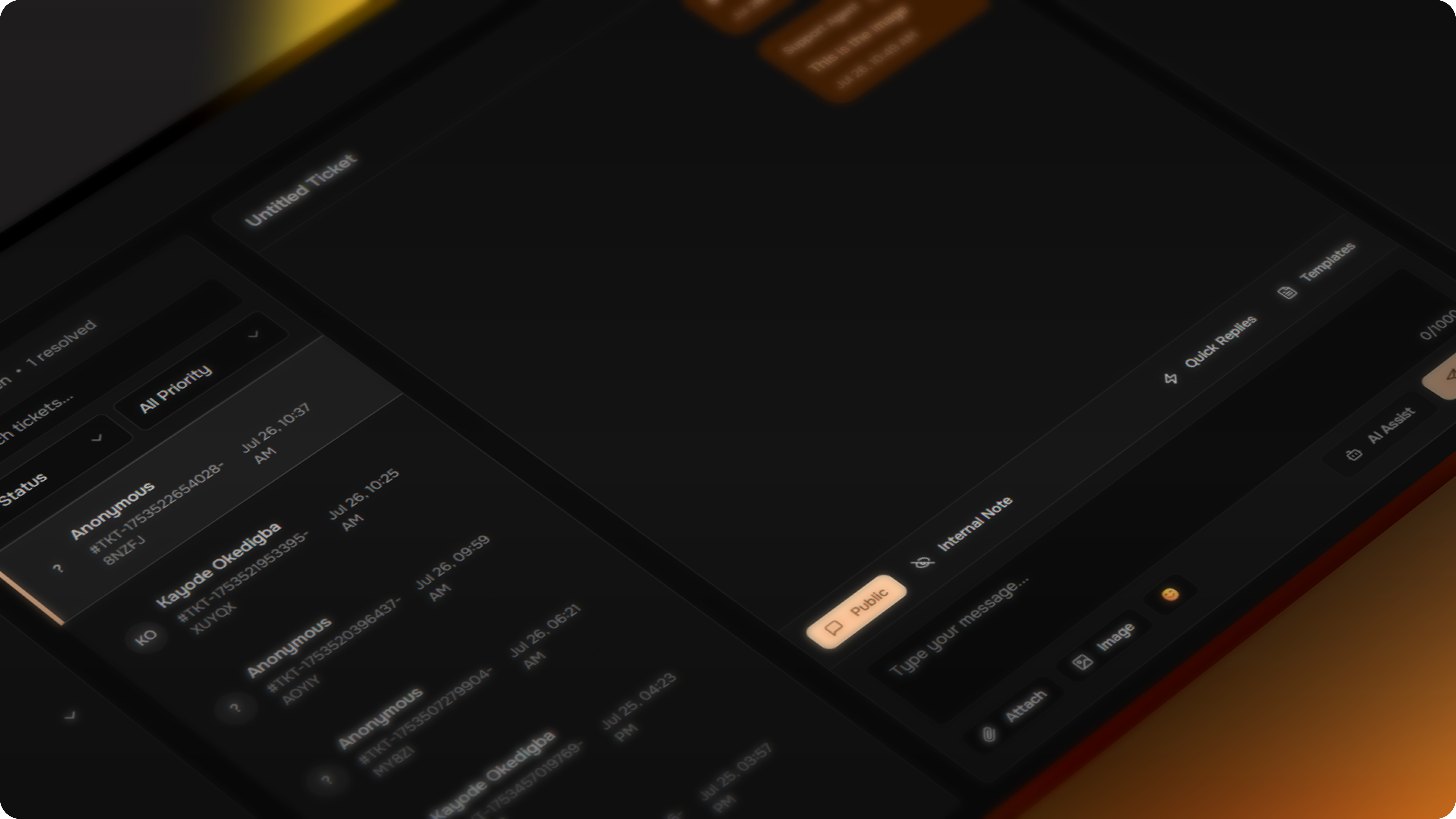
Helpdesk & Support System
The Gately Helpdesk system offers a comprehensive customer support solution, featuring automated ticket management, AI-powered responses, and seamless integration with your Framer sites. No code injection required - everything is handled automatically through the Gately SDK.Zero-Code Setup
Simply create a widget in your Gately app, and it automatically appears on your Framer site
AI-Powered Support
Intelligent responses and automatic ticket categorization with learning capabilities
Real-Time Chat
Live conversations with customers directly from your Gately dashboard
Smart Analytics
Comprehensive reporting on support metrics and customer satisfaction
Key Features
- Automatic Integration
- Intelligent Tickets
- AI-Powered Support
- Real-Time Communication
Zero-Code Setup
Simply create a widget in your Gately app, and it automatically appears on your Framer site
SDK Handles Everything
No need to manually add scripts or embed codes - everything is automatic
Instant Deployment
Changes to your helpdesk widget are reflected immediately across all sites
Cross-Platform Compatible
Works seamlessly across all Framer projects and devices
Dedicated Help Center
We now offer a dedicated help center that you can use to provide a self-service support option for your customers.Article Uploads
You and your team can easily upload and manage help articles in a centralized location.
Customer Self-Service
Empower your customers to find answers to their questions on their own, reducing the load on your support team.
Getting Started
Enable Helpdesk
Navigate to your Gately project dashboard and enable the helpdesk feature. This activates all support functionality for your project.
Create Your First Widget
In the widgets section of your Gately app, create a new helpdesk widget. Configure the appearance, behavior, and AI settings to match your brand and support needs.
Configure AI Agent
Set up your AI support agent with your specific knowledge base, response style, and escalation rules. The AI will handle initial customer inquiries automatically.
Set Business Hours
Configure your support availability, timezone, and offline messaging to ensure customers know when to expect responses.
Deploy to Framer
Your helpdesk widget automatically appears on your Framer site once created. No additional setup required - the Gately SDK handles everything.
Widget Configuration Options
Help Center Settings - Header & Hero Configuration
We’ve added new settings to give you more control over the appearance of your help center.Header Customization
- Logo upload: You can now upload a logo to replace the URL input.
- Favicon upload: You can also upload a favicon.
- Navigation links: You can add up to two navigation links.
- Call-to-action button: You can add a call-to-action button.
Hero Section Customization
- Title and subtitle editing: You can now edit the title and subtitle of the hero section.
- Background image upload: You can upload a background image for the hero section.
- Thumbnail image upload: You can also upload a thumbnail image.
- Search toggle option: You can choose to show or hide the search bar.
Image Upload Components
We’ve added image upload components for all visual assets, so you no longer have to manually enter image URLs.Help Article Categories Enhancement
We’ve enhanced our help article categories to provide a more intuitive and visually appealing experience for your users.Icon Support
You can now add a Lucide icon to each category to help users quickly identify the topic.
Category Descriptions
Add a description to each category to provide more context and help users understand what kind of articles they can expect to find.
IconPicker Component
We’ve also added a newIconPicker component to make it easy to select an icon for your categories.
Visual Category Display
The new icons and descriptions are displayed in the category management interface, making it easier to organize and manage your help articles.Ticket Management
Ticket Lifecycle
Every customer interaction follows a structured lifecycle from creation to resolution:- Creation - Automatic ticket generation from chat initiation
- Categorization - AI-powered sorting into relevant categories
- Assignment - Routing to appropriate team members
- Response - AI or human agent provides assistance
- Resolution - Issue marked as resolved with customer confirmation
- Closure - Ticket closed with satisfaction feedback
Status Tracking
- Open - New tickets awaiting initial response
- In Progress - Tickets actively being worked on
- Pending - Waiting for customer response or information
- Resolved - Issue solved, awaiting customer confirmation
- Closed - Ticket completed and archived
Priority Levels
- Low - General inquiries and non-urgent requests
- Medium - Standard support requests requiring attention
- High - Important issues affecting customer experience
- Urgent - Critical problems requiring immediate response
Team Collaboration
Internal Communication
- Private notes - Add internal comments not visible to customers
- Team mentions - Tag colleagues for collaboration
- Handoff procedures - Smooth transfer between team members
- Escalation paths - Clear procedures for complex issues
Agent Management
- Role assignments - Define agent permissions and responsibilities
- Availability status - Set online/offline status for proper routing
- Performance tracking - Monitor response times and resolution rates
- Training resources - Access to knowledge base and best practices
Analytics and Reporting
Performance Metrics
- Response times - Average time to first response and resolution
- Ticket volume - Daily, weekly, and monthly ticket counts
- Resolution rates - Percentage of tickets resolved successfully
- Customer satisfaction - Feedback scores and ratings
- Agent performance - Individual and team productivity metrics
Business Insights
- Peak hours - Identify busiest support periods
- Common issues - Track frequently reported problems
- Channel effectiveness - Compare performance across communication channels
- Trend analysis - Monitor support patterns over time
Integration Capabilities
Framer Integration
- Automatic deployment - Widgets appear instantly on Framer sites
- Design consistency - Matches your site’s visual style
- Performance optimized - Minimal impact on site loading speed
- Mobile responsive - Adapts to all screen sizes
Gately Project Integration
- Direct chat access - Chat with customers directly from Gately dashboard
- Unified inbox - All conversations in one centralized location
- Context awareness - Full customer history and interaction data
- Real-time notifications - Instant alerts for new messages and tickets
Third-Party Connections
- CRM integration - Sync customer data with existing systems
- Email notifications - Automated updates via email
- Webhook support - Connect with external tools and workflows
- API access - Full programmatic control over helpdesk functions
Best Practices
Setup Recommendations
- Configure business hours to match your actual availability
- Create comprehensive AI knowledge base for better automated responses
- Set up proper escalation rules to ensure complex issues reach human agents
- Customize widget appearance to match your brand identity
Operational Guidelines
- Respond to tickets within defined SLA timeframes
- Use internal notes for team coordination and context
- Regularly update AI knowledge base with new information
- Monitor analytics to identify improvement opportunities
Customer Experience
- Keep welcome messages friendly and informative
- Provide clear expectations for response times
- Use file uploads to better understand customer issues
- Follow up on resolved tickets to ensure satisfaction
Troubleshooting
Common Setup Issues
- Widget not appearing - Verify helpdesk is enabled and widget is active
- AI not responding - Check AI agent configuration and knowledge base
- File uploads failing - Review file type and size restrictions
- Business hours not working - Confirm timezone settings are correct
Performance Optimization
- Slow loading - Check widget configuration for unnecessary features
- High resource usage - Monitor file upload sizes and frequency
- Connection issues - Verify network connectivity and firewall settings
- Mobile compatibility - Test widget responsiveness across devices